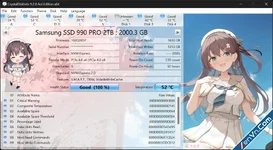
CrystalDiskInfo is a completely free, open-source software for Windows operating systems, specifically designed to check the health, temperature, and operational status of hard drives (HDD/SSD). This tool works by reading S.M.A.R.T. (Smart Motion, Analysis, and Reporting) data built into the drives to provide early warnings of potential failures, helping users proactively protect their data.
You can download the free installer from the homepage:
crystalmark.info
The RAW values of the default parameters are in HEX format, which is difficult to read. Please convert them to normal numbers (DEC) as follows:
Select Function -> Advanced Feauture -> Raw Values -> 10 [DEC]
To assess the health/lifespan of an SSD using CrystalDiskInfo software, pay attention to the following parameters:
1. Health Status (%)
 (Most important)
CrystalDiskInfo will display:
Good 100% → SSD is almost new.
90–99% → Completely normal.
50–80% → Has been used quite a lot but is still good.
<20% → Should prepare for replacement.
0% → SSD has reached the manufacturer's designed lifespan limit.
Note:
This number is not the probability of failure.
It's calculated from SMART metrics like Percentage Used, Wear Leveling Count, etc.
2. Total Host Writes (Total NAND Writes)
The number of read cycles of the drive; this is an indicator to check immediately after Health.
Compare it to the manufacturer's TBW (Terabytes Written) specification to see if the limit has been reached.
Example:
Total Host Writes = 40TB
TBW (manufacturer's stated) = 300TB
=> Approximately 13% used.
3. Percentage Used or Wear Leveling Count
How many times have the NAND blocks been written/erased compared to the design.
Varies depending on the SSD manufacturer. NVMe drives usually have Percentage Used. SATA drives usually have Wear Leveling Count or Media Wearout Indicator.
Example:
Percentage Used = 2%
=> Only 2% wear has been achieved.
4. Reallocated Sector Count
☆Only for SATA drives. The number of sectors (smallest storage areas) on the drive that have been physically damaged and replaced by spare sectors.
If this value is 0, it's very good.
If it starts increasing:
3, 8, 20,...
=> The SSD has a damaged block that needs to be replaced by a spare block.
The SSD is still working, but data needs to be backed up.
5. Available Spare
☆Available spare space. Especially for NVMe drives. This indicator shows the percentage of spare memory blocks remaining on the SSD that are not yet in use.
Example:
Available Spare = 100%
=> Very good.
If it drops to: 20%, 10%
=> The number of spare blocks is nearly depleted.
6. Media/Data Integrity Errors
☆This indicator counts the number of times the SSD has encountered serious data errors during read or write operations.
It should be: 0
If errors appear: 15, 200, ...
=> The SSD has experienced read/write errors.
7. Temperature
☆The temperature of the drive. Not directly related to lifespan, but it has a significant impact.
Recommended temperatures:
30–45°C: very good
45–60°C: normal
60–70°C: slightly hot
> 70°C: cooling needs improvement