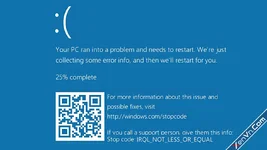
Updating drivers for your computer's hardware is a good practice to optimize your system and get bug fixes. However, sometimes these driver updates can cause Windows errors, one of the most serious being the blue screen of death with the IRQL_NOT_LESS_OR_EQUAL message, preventing your computer from booting into Windows.
Updating Windows drivers using third-party software further increases this risk. It's recommended to only update drivers provided on the laptop manufacturer's website and avoid upgrading to the latest version if you're unsure of its compatibility.
Before updating drivers, it's best to create a restore point in "Windows System Restore" so you can easily revert your computer to a previous state if errors occur.
Here's how to fix the IRQL_NOT_LESS_OR_EQUAL error when you don't have a restore point in "Windows System Restore". We'll uninstall the driver offline:
1. When the blue screen appears, restart your computer several times until Windows displays "Preparing Automatic Repair".
2. In the control panel, select Advanced options → Command Prompt.
3. Windows will prompt you to log in using your Microsoft account password or your computer password.
4. List your Windows drivers using the following command; it will display a list of drivers you have installed on your computer:
dism /Image:C:\ /Get-Drivers5. Pay attention to the Provider Name lines to find the names of the drivers you just installed, for example: Realtek,...
6. Once you find the name of the installed driver, look at its Published Name line, for example: oem23.inf
7. Type the following command to uninstall that driver, replacing oem23.inf with the Published Name of the driver to be uninstalled:
dism /Image:C:\ /Remove-Driver /Driver:oem23.inf8. Repeat for other suspected drivers.
9. After completion, type exit to close the Command Prompt.
10. Restart your computer to see the results.
Command Prompt Tips:
- To copy text, select it by dragging and dropping, then press Ctrl + C
- To paste text, right-click on the command line you want to paste
- To review your last typed commands, use the up (↑) and down (↓) arrow keys